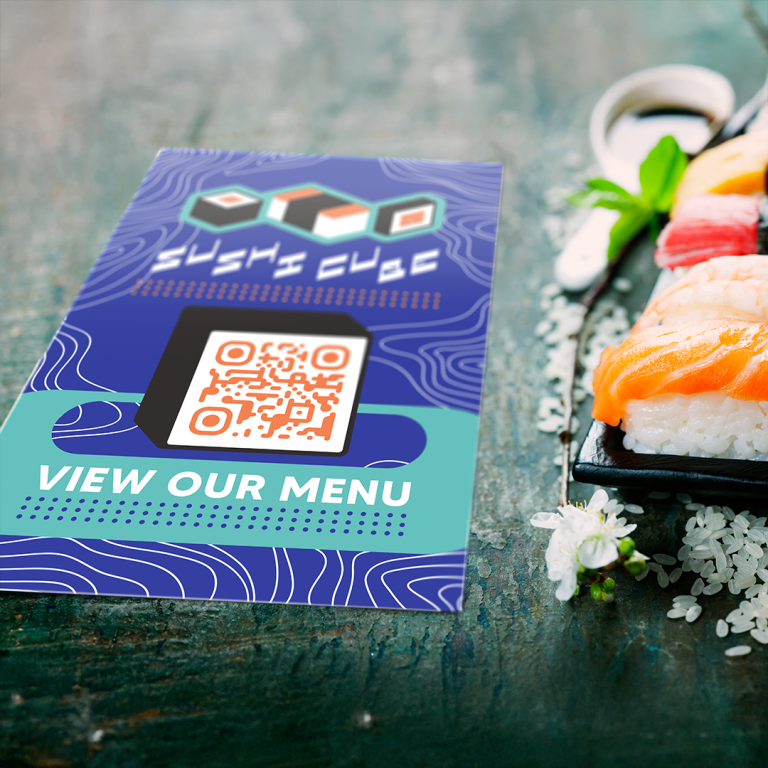

A Practical Guide to Getting Your Files Ready
Preparing artwork correctly can help make the printing process smoother, reduce unexpected revisions, and ensure your finished products look the way you intended.
Whether you’re designing menus, gift cards, signage, promotional materials, or other printed products, a few basic principles apply to nearly every project.
Step 1: Choose the Right File Format
Different file types serve different purposes.
| File Format | Common Use |
|---|---|
| Print-ready layouts and completed artwork | |
| AI | Editable Adobe Illustrator artwork |
| EPS | Vector logos and graphics |
| SVG | Vector artwork, subject to production workflow compatibility |
| PNG | Images and graphics, including transparency |
| JPG | Photographs and other raster images |
Best Practice: For print-ready artwork, a properly prepared PDF is often a good starting point. Editable vector files can also be valuable when adjustments are needed.
Always confirm the preferred file specifications for your particular product.
Step 2: Understand Resolution
Resolution determines how much detail a raster image contains.
For many conventional printed products, 300 pixels per inch (PPI) at the final printed size is a useful target.
For example, an image intended to print at 5 × 7 inches would need approximately 1,500 × 2,100 pixels to achieve 300 PPI.
However, resolution requirements can vary depending on the printing method, viewing distance, and product.
Vector artwork is different. Logos and graphics created as vectors can generally be resized without the same loss of sharpness associated with raster images.
Step 3: Account for Bleed and Safe Areas
Two important concepts in print preparation are bleed and safe area.
Bleed
Bleed is artwork that extends beyond the final trim edge. It helps prevent unwanted white edges if minor variations occur during cutting.
A common bleed allowance is 0.125 inches on each side, although exact requirements depend on the product and production process.
Safe Area
The safe area is the space inside the trim edge where important text, logos, and other essential elements should remain.
Keeping critical content away from the edge reduces the risk of it being cut off.
For custom shapes, folds, holes, and other special constructions, additional template requirements may apply.
Step 4: Understand Color
Printed colors may appear different from the colors displayed on a computer monitor.
Screens generally use RGB light, while many printing processes use CMYK inks or other color systems.
Converting artwork between color spaces can affect how certain colors reproduce.
For projects with strict brand requirements, communicate any specified colors early and ask about available color-matching options.
Important: The exact appearance of printed colors can vary with materials, finishes, equipment, and lighting conditions.
Step 5: Prepare Fonts and Graphics
Missing fonts and linked images can cause unexpected changes when artwork is opened on another computer.
Before submitting a design:
- Embed fonts in a print-ready PDF where appropriate.
- Outline text in editable vector artwork when requested, while retaining an editable original.
- Embed or package linked images.
- Check that logos and graphics are sharp.
- Remove unintended hidden objects and unused elements.
- Confirm that all text is spelled correctly.
Keeping a fully editable working file is useful in case revisions are needed later.
Step 6: Consider Special Finishes and Construction
Products with custom shapes, specialty finishes, clear areas, foil, folds, or other unique features may require additional artwork preparation.
For example, a custom-shaped card may need a separate cut path, while a specialty finish might require its own clearly identified artwork layer.
Requirements vary by product and production method.
Before building a complicated design, ask for the appropriate template or specifications.
Step 7: Review Your Proof Carefully
A design proof is an important opportunity to review the project before production.
Check the following:
- Spelling, grammar, and contact information.
- Product dimensions and orientation.
- Logo placement and alignment.
- Menu prices, descriptions, and other variable details.
- QR codes, barcodes, and relevant data.
- Cut lines, folds, holes, and special finishes.
- Overall layout and visual hierarchy.
A digital proof can help confirm layout and content, but it may not accurately represent every aspect of final color, material, texture, or finish.
If physical samples or printed proofs are available and important to your project, discuss those options with your representative.
Your Pre-Print Checklist
- Confirm final product dimensions.
- Use the correct artwork template.
- Check image resolution.
- Include the required bleed.
- Keep important content within safe areas.
- Review colors and brand requirements.
- Embed or prepare fonts appropriately.
- Confirm all linked images and graphics.
- Double-check spelling and important information.
- Test QR codes and barcodes where applicable.
- Review the final proof before approval.
Need Help Preparing Your Artwork?
You don’t need to be a print production expert to get your project started.
Whether you have a completed design or need help preparing your files, the Table Partners team can guide you through the requirements for your specific product.